> ## Documentation Index
> Fetch the complete documentation index at: https://nightwatch.laravel.com/docs/llms.txt
> Use this file to discover all available pages before exploring further.
# Slack
> Receive real-time issue updates without leaving your Slack workspace
 ## Getting started
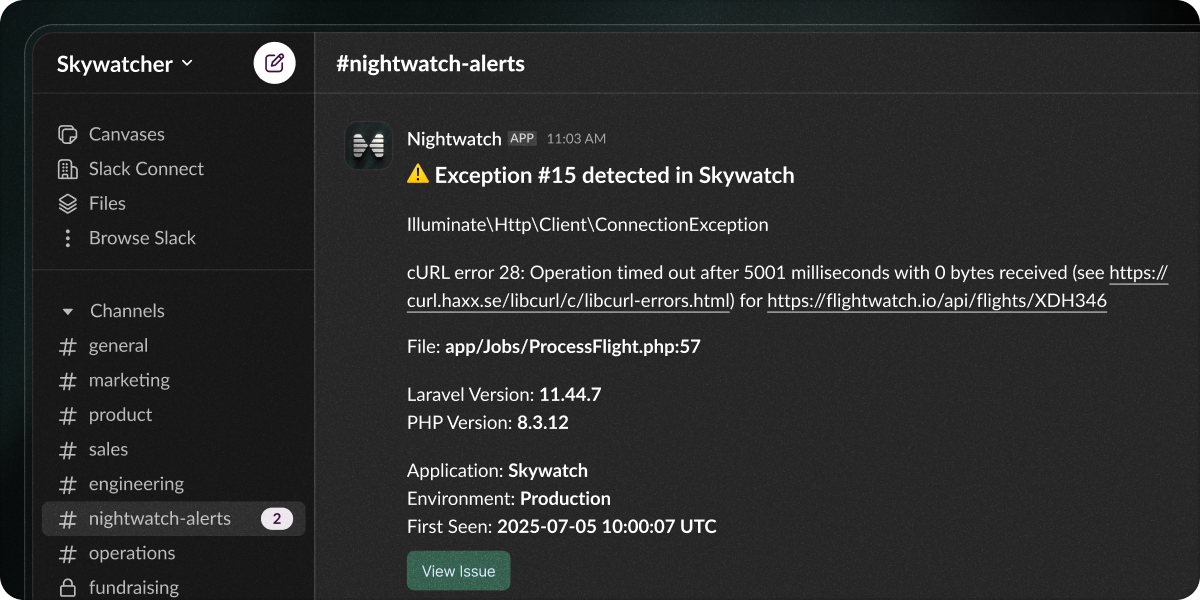
Connect Nightwatch to your Slack workspace to receive instant notifications about new issues, reopened issues, and status updates for any application in your organization.
Prerequisite: You'll need permission to install apps in your Slack workspace.
From your Nightwatch dashboard, click **Settings**.
Choose the application you want to receive Slack notifications for.
In the **Issues** settings, find the Integration area and click **Add to Slack**.
Slack will open asking you to select a channel for notifications. Select your channel and click **Allow**.
You will be redirected back to Nightwatch, where you can configure which events to send to Slack:
* **New issues**
* **Reopened issues**
* **Status changes**
## Reconnecting or disconnecting
Having connection issues? Go to your application settings and click
**Reconnect to Slack** to re-authorize.
To remove the integration, go to your application settings and click
**Disconnect from Slack**. You can always reconnect later.
## Getting started
Connect Nightwatch to your Slack workspace to receive instant notifications about new issues, reopened issues, and status updates for any application in your organization.
Prerequisite: You'll need permission to install apps in your Slack workspace.
From your Nightwatch dashboard, click **Settings**.
Choose the application you want to receive Slack notifications for.
In the **Issues** settings, find the Integration area and click **Add to Slack**.
Slack will open asking you to select a channel for notifications. Select your channel and click **Allow**.
You will be redirected back to Nightwatch, where you can configure which events to send to Slack:
* **New issues**
* **Reopened issues**
* **Status changes**
## Reconnecting or disconnecting
Having connection issues? Go to your application settings and click
**Reconnect to Slack** to re-authorize.
To remove the integration, go to your application settings and click
**Disconnect from Slack**. You can always reconnect later.