> ## Documentation Index
> Fetch the complete documentation index at: https://nightwatch.laravel.com/docs/llms.txt
> Use this file to discover all available pages before exploring further.
# Laravel Cloud
> Get started with Nightwatch on Laravel Cloud
## Prerequisites
First, follow the regular steps in our [quick start guide](/start-guide) to begin.
## Automatic integration (recommended)
Laravel Cloud offers built-in support for Nightwatch. Get set up in minutes:
Install the Laravel Nightwatch package in your application locally using [Composer](https://packagist.org/packages/laravel/nightwatch):
```bash theme={null}
composer require laravel/nightwatch
```
Run composer require laravel/nightwatch on your local machine to update your composer.json and composer.lock files before deploying.
Click the Connect Nightwatch button in your environment dashboard.
Toggle Enable monitoring to activate Nightwatch for your environment.
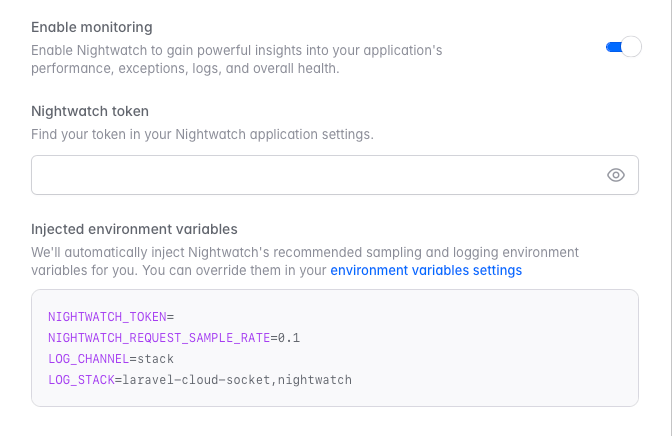 Enter your Nightwatch token, which you can find in your Nightwatch application settings.
Once complete, Laravel Cloud will automatically inject the following environment variables into your environment:
```bash theme={null}
NIGHTWATCH_TOKEN=
NIGHTWATCH_REQUEST_SAMPLE_RATE=0.1
LOG_CHANNEL=stack
LOG_STACK=laravel-cloud-socket,nightwatch
```
You can override these variables in your environment variable settings if needed.
Enabling Nightwatch will automatically run the agent across all the App
compute and Worker clusters in the environment. You can{" "}
setup Nightwatch manually if you want the
agent to run on specific instances.
If you have previously configured Nightwatch manually using background
processes, you must remove these processes from every cluster before enabling
the built-in integration to avoid issues with your environment.
## Manual integration
You can also [manually integrate Nightwatch with Laravel Cloud](https://cloud.laravel.com/docs/guides/nightwatch-on-cloud) by adding a background process to each App compute and Worker cluster.
### Add your environment variables
Before running the agent, you'll need to add environment variables to your Cloud environment. Follow Laravel Cloud's guide on [managing environment variables](https://cloud.laravel.com/docs/environments#environment-variables) to get started.
```bash theme={null}
NIGHTWATCH_TOKEN=your-api-key
NIGHTWATCH_REQUEST_SAMPLE_RATE=0.1 #recommended
NIGHTWATCH_COMMAND_SAMPLE_RATE=1.0
NIGHTWATCH_EXCEPTION_SAMPLE_RATE=1.0
```
### Running the agent
To run the agent in your Cloud application cluster, follow these simple steps:
**Steps**
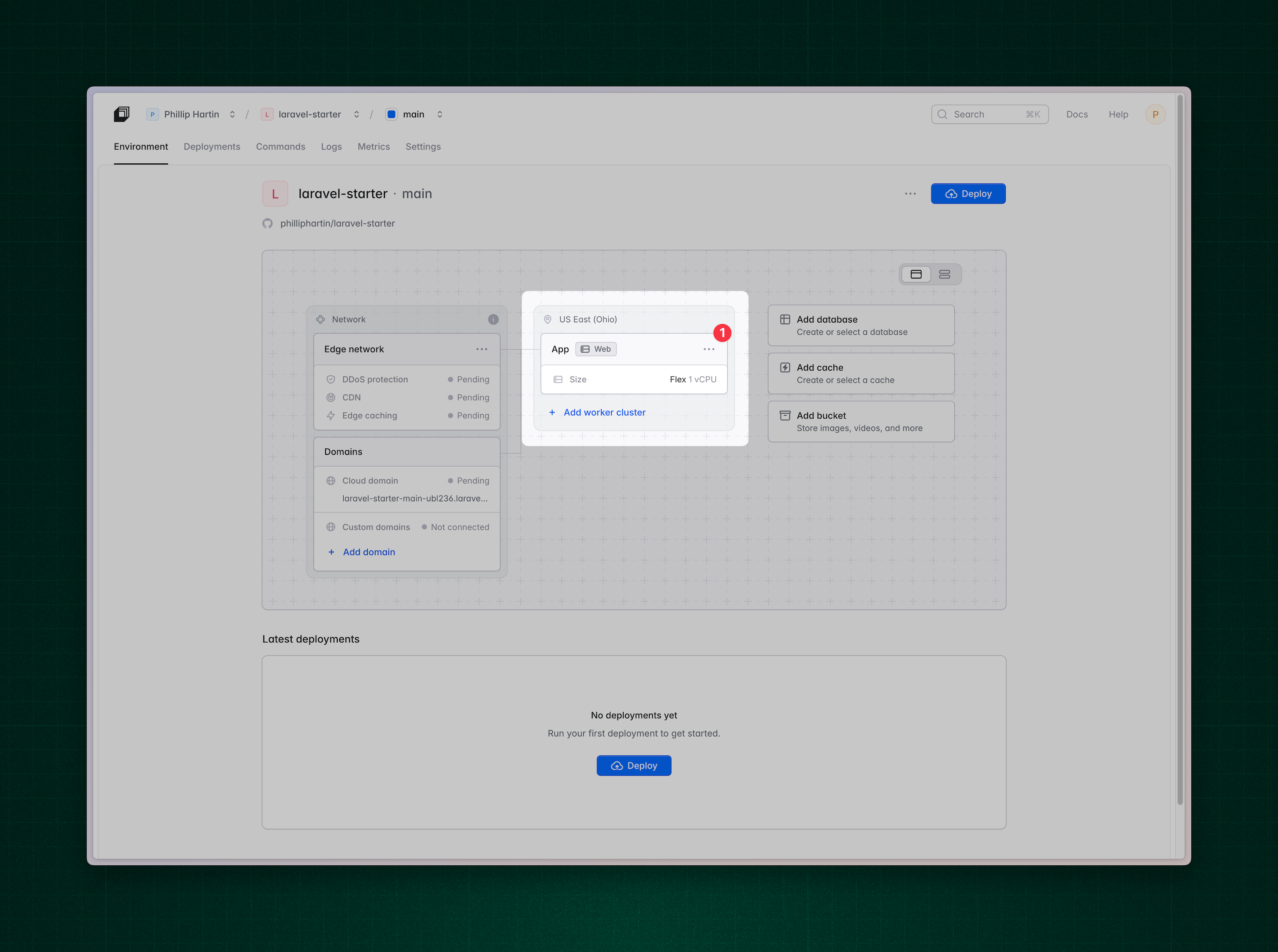
1. Select your **application cluster**
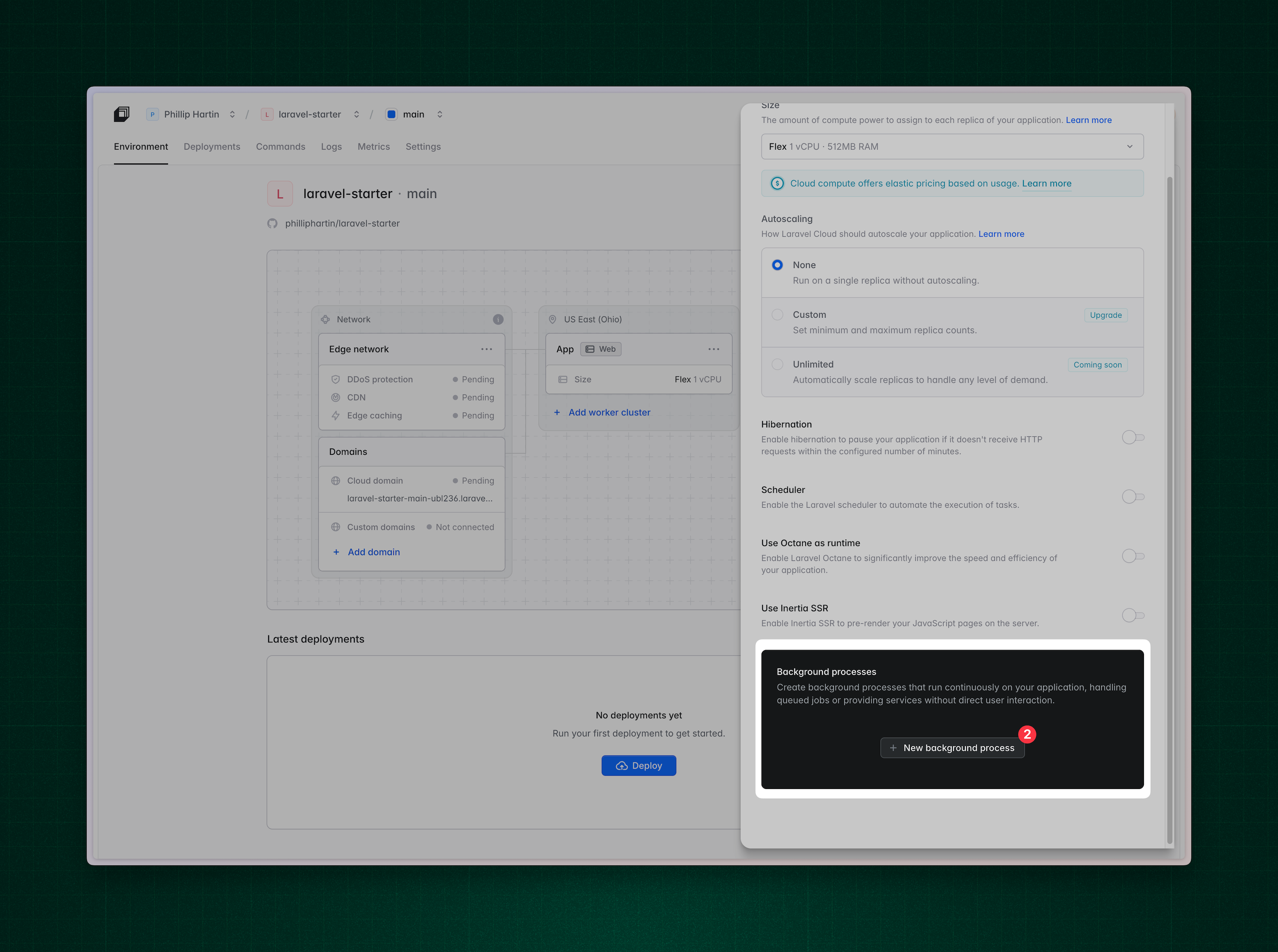
2. Click **New background process**
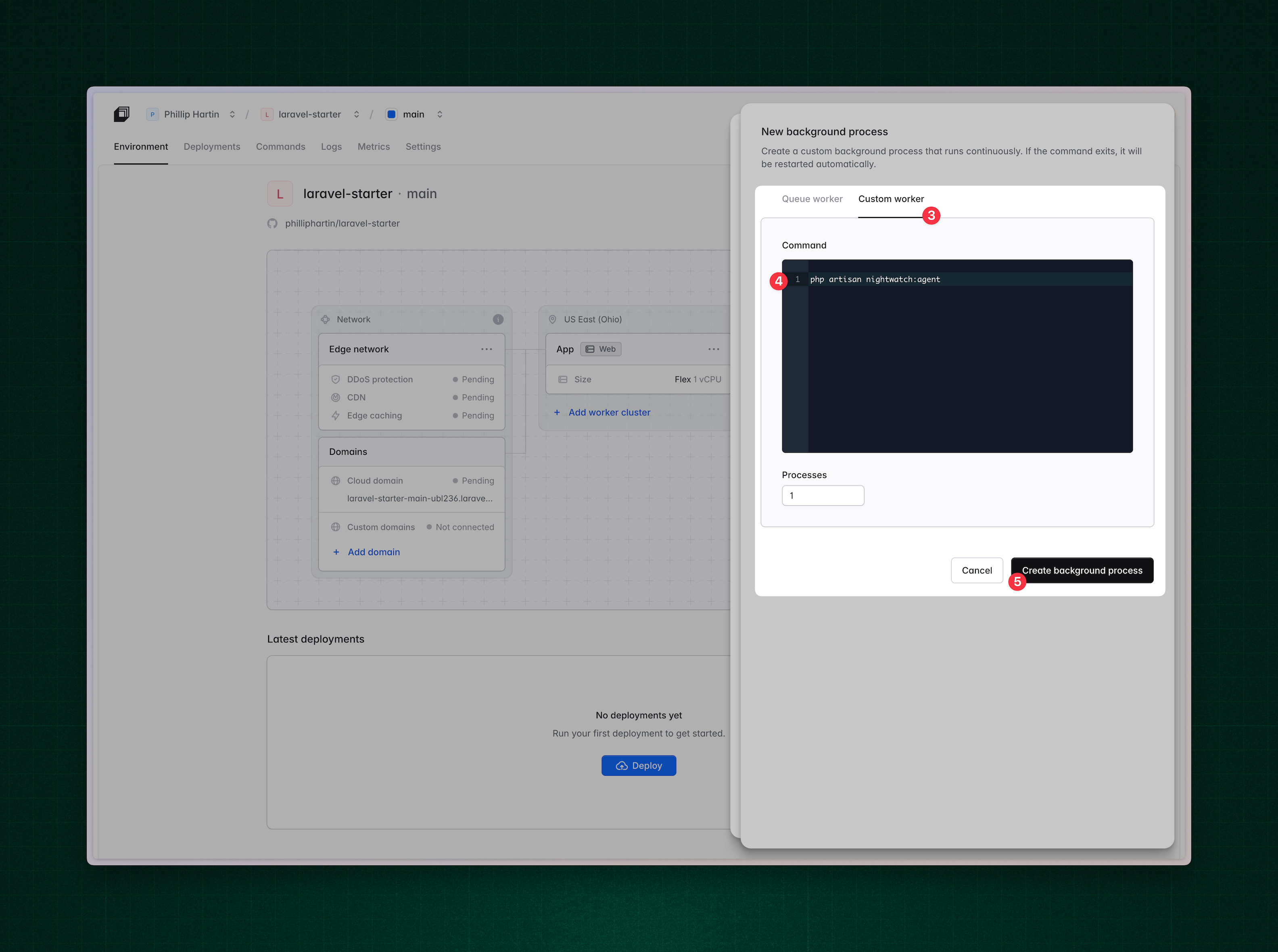
3. Choose **Custom worker**
4. Enter `php artisan nightwatch:agent` as the command
5. Save your changes and redeploy
Note: If you're using a dedicated **worker cluster**, please repeat the same
steps for the worker cluster so that it also runs the agent.
### Visual guide
Enter your Nightwatch token, which you can find in your Nightwatch application settings.
Once complete, Laravel Cloud will automatically inject the following environment variables into your environment:
```bash theme={null}
NIGHTWATCH_TOKEN=
NIGHTWATCH_REQUEST_SAMPLE_RATE=0.1
LOG_CHANNEL=stack
LOG_STACK=laravel-cloud-socket,nightwatch
```
You can override these variables in your environment variable settings if needed.
Enabling Nightwatch will automatically run the agent across all the App
compute and Worker clusters in the environment. You can{" "}
setup Nightwatch manually if you want the
agent to run on specific instances.
If you have previously configured Nightwatch manually using background
processes, you must remove these processes from every cluster before enabling
the built-in integration to avoid issues with your environment.
## Manual integration
You can also [manually integrate Nightwatch with Laravel Cloud](https://cloud.laravel.com/docs/guides/nightwatch-on-cloud) by adding a background process to each App compute and Worker cluster.
### Add your environment variables
Before running the agent, you'll need to add environment variables to your Cloud environment. Follow Laravel Cloud's guide on [managing environment variables](https://cloud.laravel.com/docs/environments#environment-variables) to get started.
```bash theme={null}
NIGHTWATCH_TOKEN=your-api-key
NIGHTWATCH_REQUEST_SAMPLE_RATE=0.1 #recommended
NIGHTWATCH_COMMAND_SAMPLE_RATE=1.0
NIGHTWATCH_EXCEPTION_SAMPLE_RATE=1.0
```
### Running the agent
To run the agent in your Cloud application cluster, follow these simple steps:
**Steps**
1. Select your **application cluster**
2. Click **New background process**
3. Choose **Custom worker**
4. Enter `php artisan nightwatch:agent` as the command
5. Save your changes and redeploy
Note: If you're using a dedicated **worker cluster**, please repeat the same
steps for the worker cluster so that it also runs the agent.
### Visual guide